UX Strategy for Pen Adoption on AI PCs
2025
"Paper", beyond a note-taking app
Role
Project Lead, Lead Designer
COLLABORATORS
External Dev Vendor (Ukraine), Internal Dev team (Japan)
Duration
5 months
Contribution
Designed and prototyped Paper, a lightweight note-taking experience focused on improving pen adoption and engagement, while exploring AI-powered voice and search capabilities to inform future pen-centric experiences across Lenovo tablets and alternate form factor devices.
Opportunity
Despite years of investment in pen hardware, pen adoption remains limited on PCs
Pen Adoption Challenges
Often perceived as a niche tool
Most pen-dedicated apps feel tablet-oriented, heavy, cluttered, and built for power users, packed with features designed for artists or students with complex workflows.


Pen - OSK switching is not fluid and natural
Switching to the OSK and trackpad becomes clunky the moment the pen is in hand. Without fluid transitions, the pen feels limited, useful only in certain moments


Why now? | The Opportunity
New form factors make pen interactions more practical and visible, while AI PCs enable multimodal interaction, assistance and contextual understanding.

Alternate form factors with input planes
Dual‑screen and foldable laptops create dedicated space for quick capture, markup, and note‑taking, naturally encouraging pen use and expanding where and how the pen can be used.

Emerging Multimodal AI PCs
Emerging AI PCs create opportunities for multimodal interactions with voice, camera, etc. along with contextual understanding and assistance that enhnace traditional pen experiences.
A Pen becomes far more than a niche input when it moves seamlessly across contexts and input methods, evolving into a natural, versatile tool that supports a broader range of tasks
UX Strategy
North Star Strategy for Pen UX
Expand Pen Value with Capture & Act |
Systemwide capture and action workflows make the pen useful across contexts, not just within a single app.
Future Opportunity
Differentiate with Pen + Voice |
Pairing pen and voice creates a multimodal, complementary input system that enables faster and more natural workflows.
Anchor Pen Adoption with Everyday Notes |
A lightweight note-taking experience gives users an immediate, everyday reason to pick up the pen through quick capture and thinking.
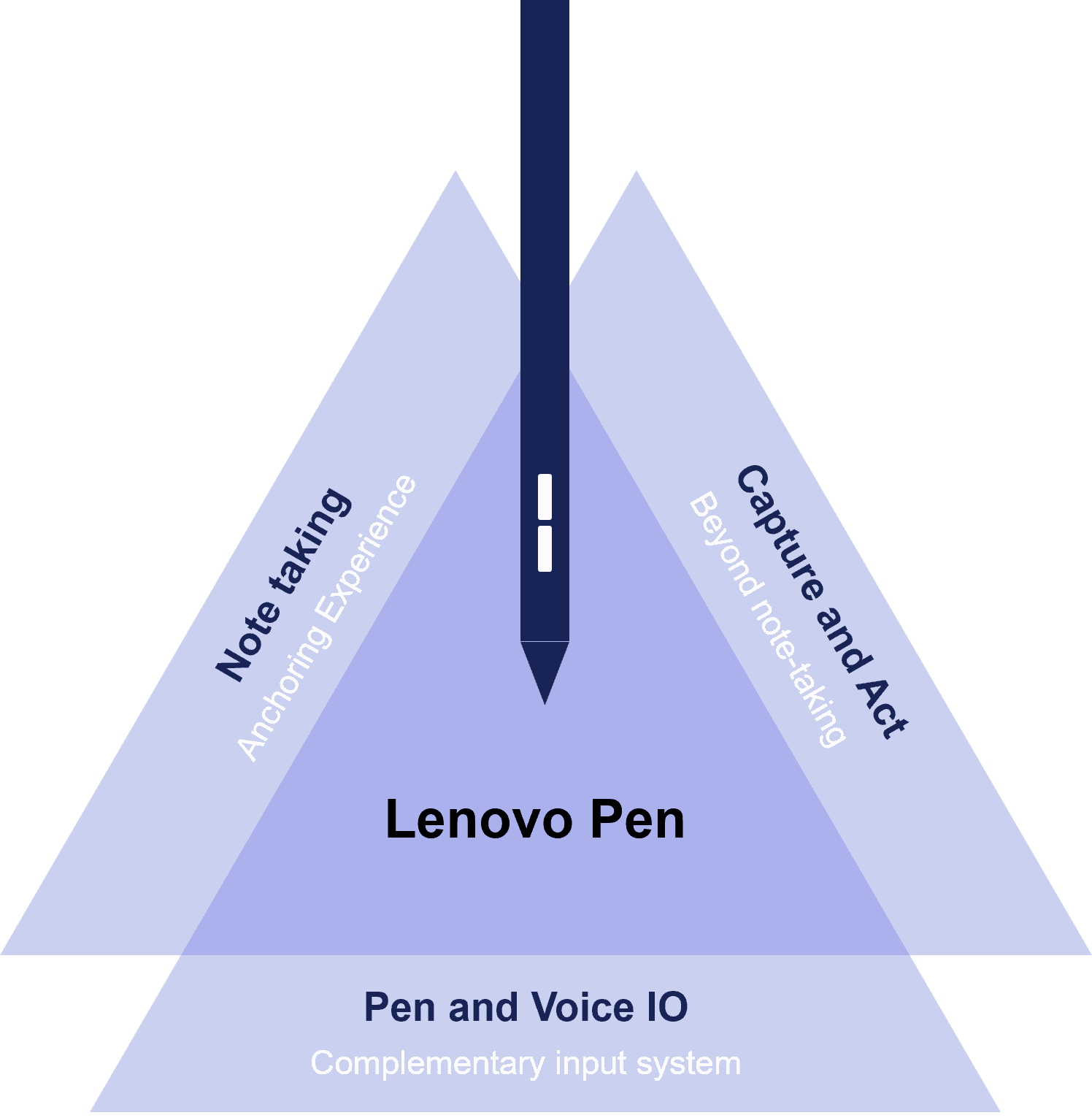
For this project, I focused on the first two pillars: everyday note-taking as the anchor experience and exploring Pen + Voice as the primary differentiator.
Everyday Note-taking
What the experience needs to enable?

Snapshot of the brainstorming process
A lightweight set of foundational capabilities established a complete note-taking experience, allowing exploration to focus on AI concepts that most directly supported pen adoption and multimodal interaction.

Foundational Capabilities
Introducing the "Paper" App
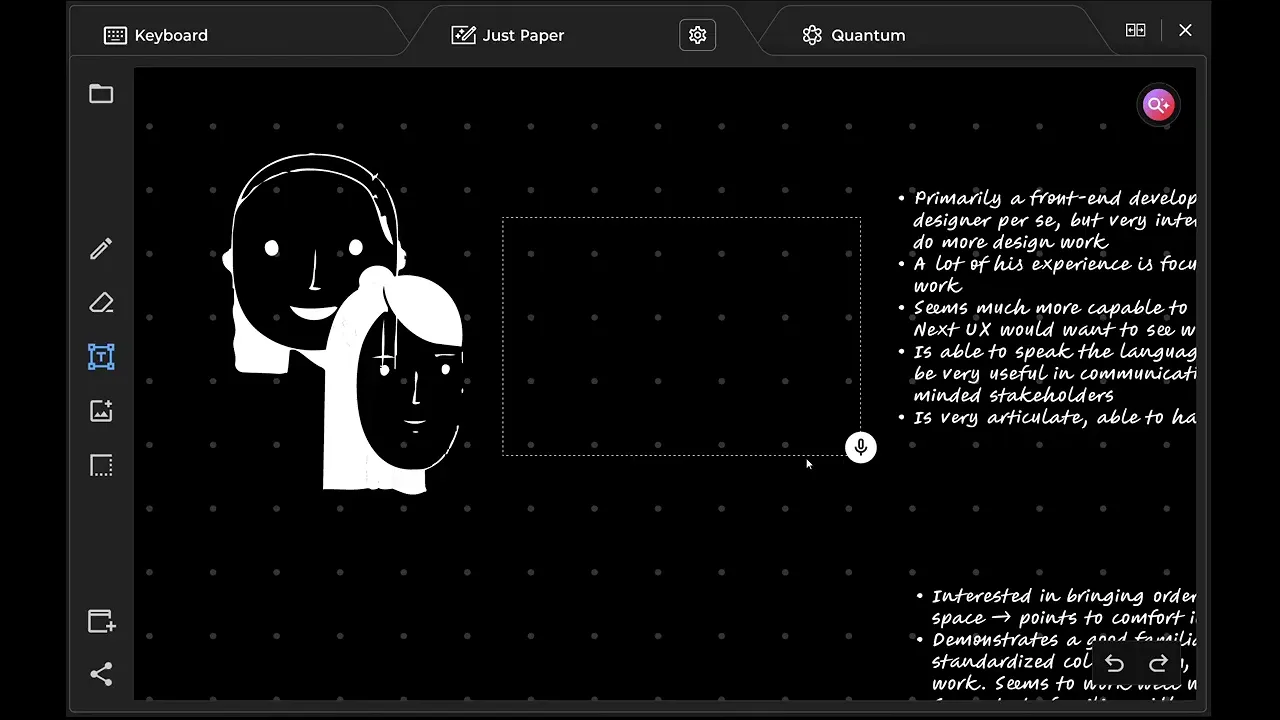
Paper is a lightweight, low-friction note‑taking app designed to let users create, capture and edit content instantly as well as access, search and organize them easily.
Core Use Cases
- Capture ideas and reflections instantly
- Maintain a quick, handy journal or a to-do list
- Mark up documents/ create doodles or quick sketches with a few focused tools
Paper is not a replacement for full-featured sketching programs like Procreate, or whiteboarding apps like Miro

Quick Access, Minimal UI and Personalization

Tab UI
In-line with HW
tab designSwitch between OSK,
Paper and AI agent
Pen, eraser
Textbox
Import
Select
Pre-defined color palette
Quick adjust - text size
/ pen stroke
Choose "Paper" color
Lined / grid / plain
Light / dark theme
Theme setting
Infinite canvas
Input options
Palette
Paper types
Search in file
Undo/ Redo
Share / export
Create and Capture

Write using pen
Doodle / draw
Add text using OSK
Add images/ docs
Voice-to-text
Edit and Modify

Smart select
AI assist using voice
Context-aware
drop-down menu
Organize and Retrieve

Search across all files
Single tier file/folder organization
Video demo of the Paper in action - Foundational Capabilities
Search across all files
Single tier file/folder organization
AI Features | Design and Build
Beyond the foundations
Beyond delivering a lightweight note-taking experience, Paper served as a platform for exploring how AI could enhance pen workflows.
AI opportunity space: Concepts explored
#1. Ink and Talk
Using voice to add or edit text

Create
#2. Smart Finder
AI powered search

Find
#3. Smart Select
Context aware options

Assist
Future Opportunity
Ink and Talk, and Smart Finder were selected as the initial focus areas because they form the foundation of the note-taking experience and align most closely with the Pen UX strategy.
#1 Ink and Talk : Deep Dive
Input switching Journey / Pain Points
Entering text remains a keyboard-dependent workflow, even when users are actively working
with a pen.

Design Q: How might voice complement the pen to create a more fluid note-taking experience?
What is Ink and Talk?
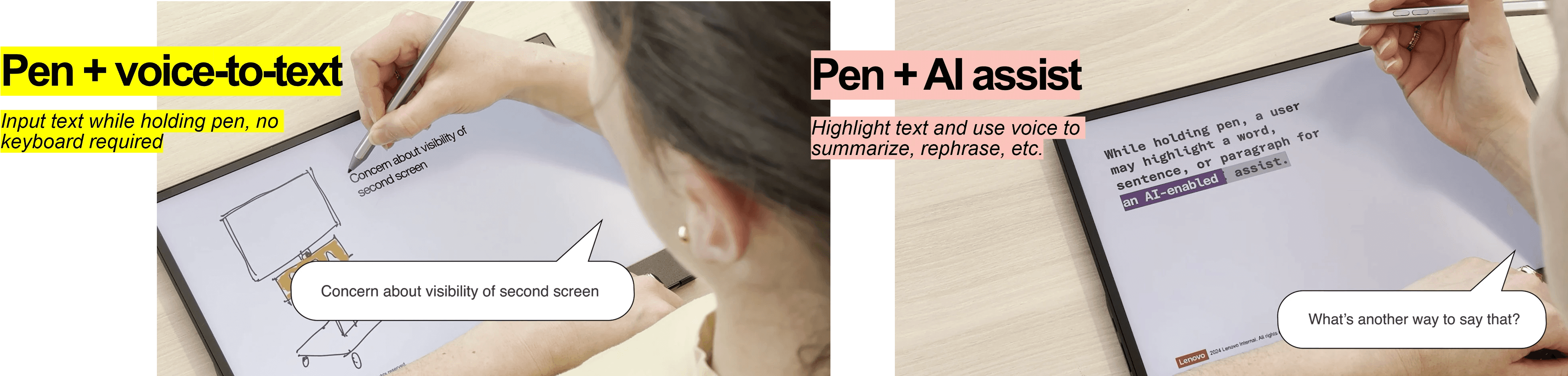
Voice and Pen Principle

Pen
- Placement
- Control
- Navigation
- Selection
Pen ≈ Trackpad / mouse
Voice ≈ OSK
Voice
- Text entry / Dictation
- Assistive commands
Interaction Journey for Ink and Talk
Trigger
Pen button
- Long press to activate text tool and listening
- Double press for AI assist


Control
Pen Tip
- Placement of Textbox on the canvas
- Pen to double and select text
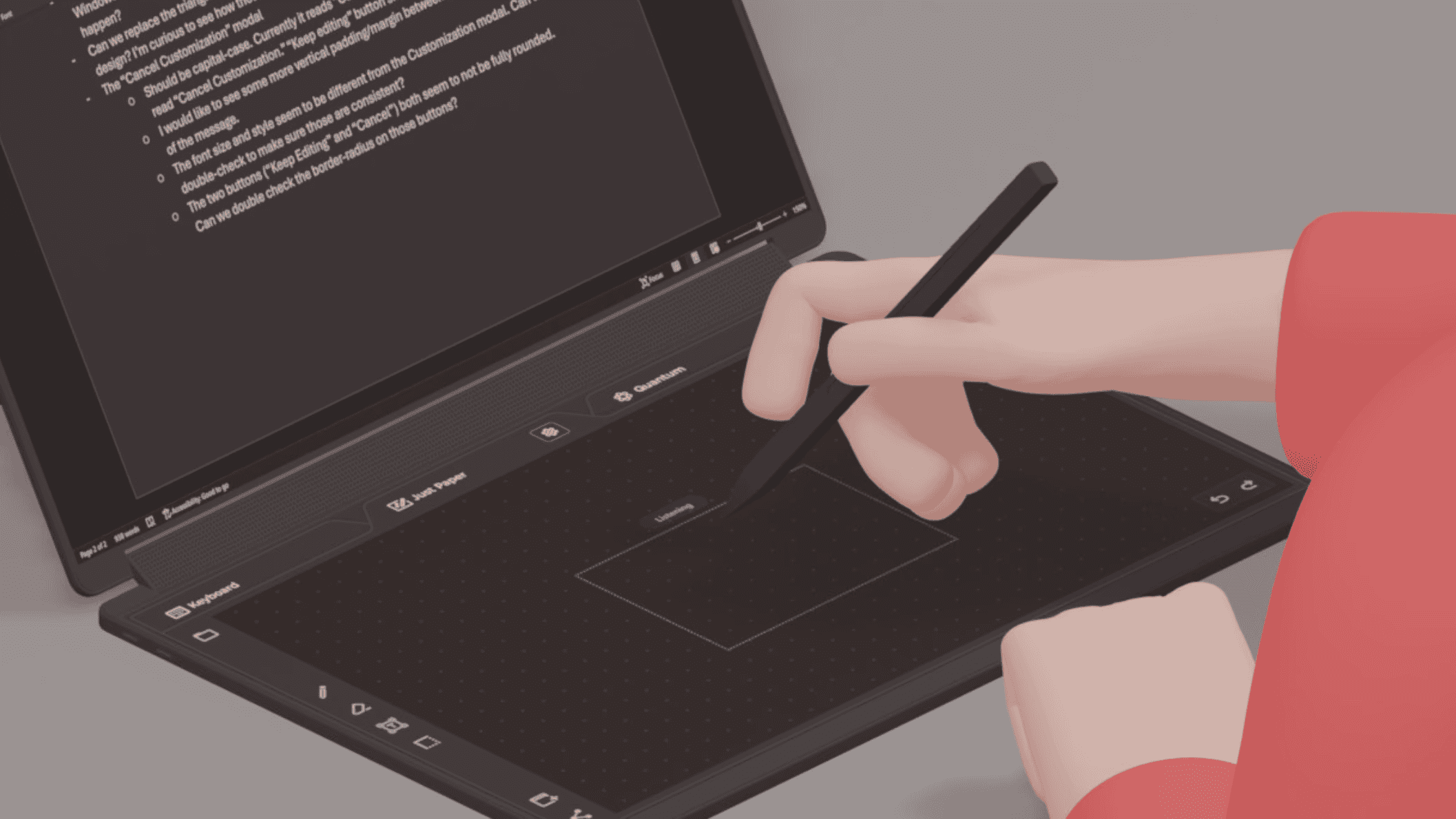
Feedback
Color, Icons and Gradient
- Icon above the textbox
- Change in textbox outline/stroke

Example User Flow for Ink and Talk: Voice-to-text

UI Explorations
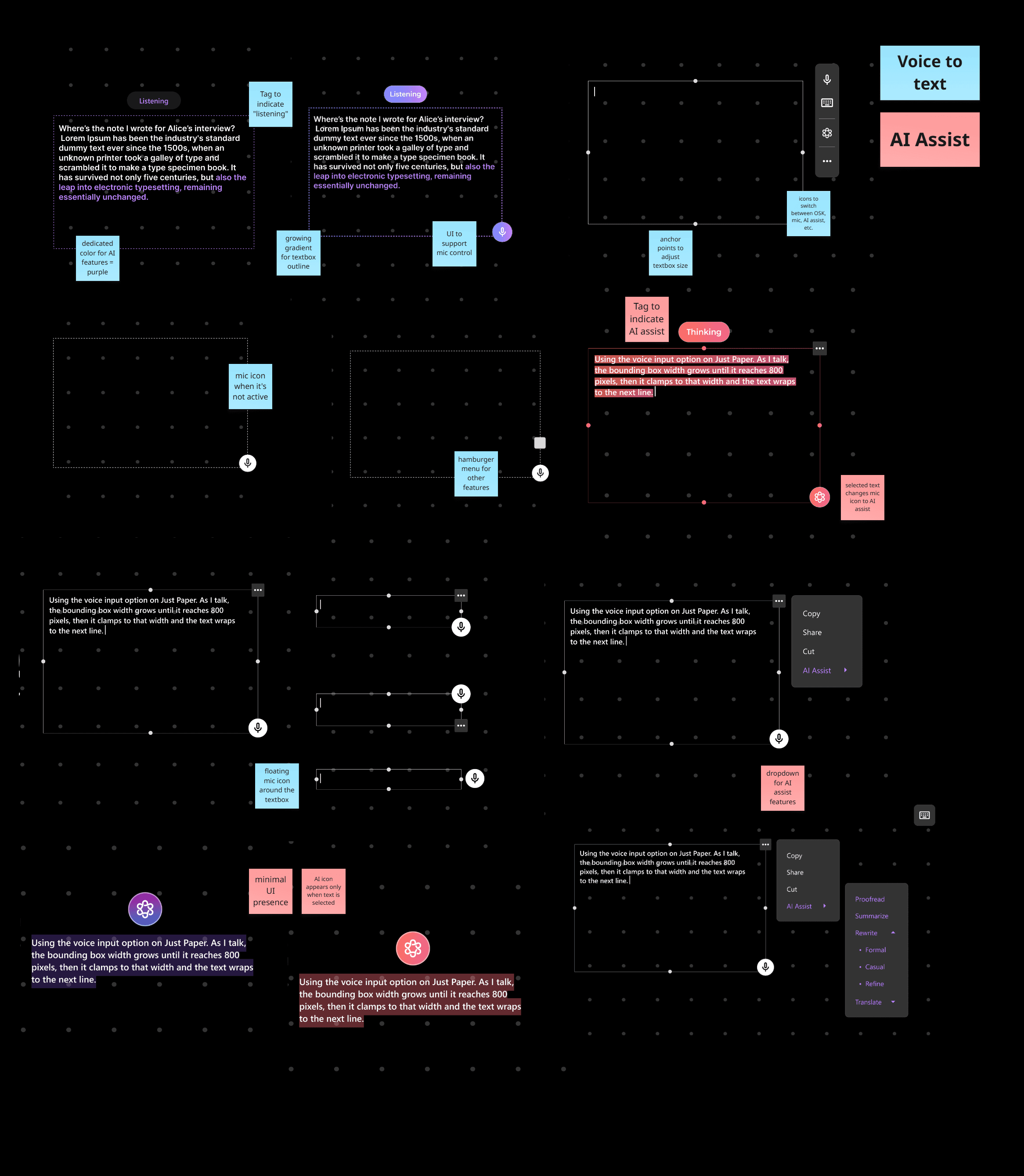
UI Flow States for Ink and Talk

UX Flow Videos
Voice to text
AI Assist
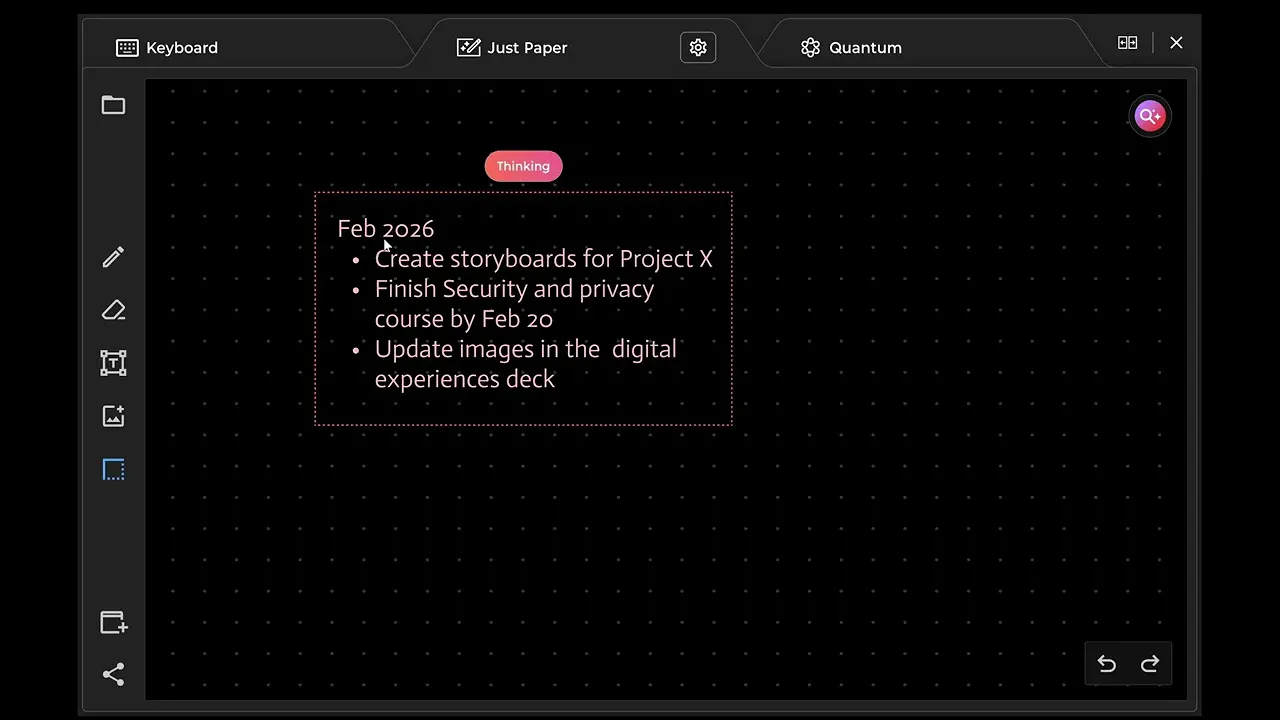
Prototype Video Demo: Ink and Talk | Voice-to-text
Create
Annotate + Dictation
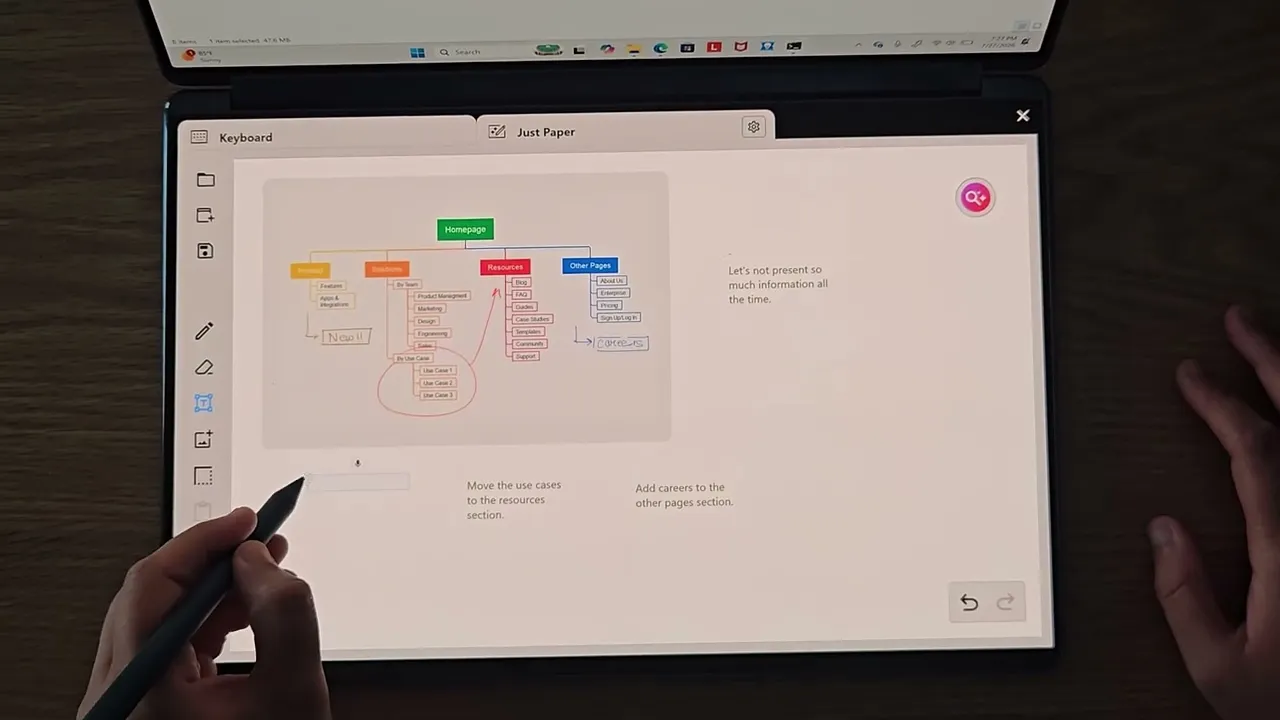
one touch trigger – Use pen to place textbox and button to trigger dictation
Pen and voice as an alternative to trackpad and keyboard
Easily switch between “Draw” and “Dictation” mode
#2 Smart Finder : Deep Dive
Key Insights and Pain Points + Design Principles
1
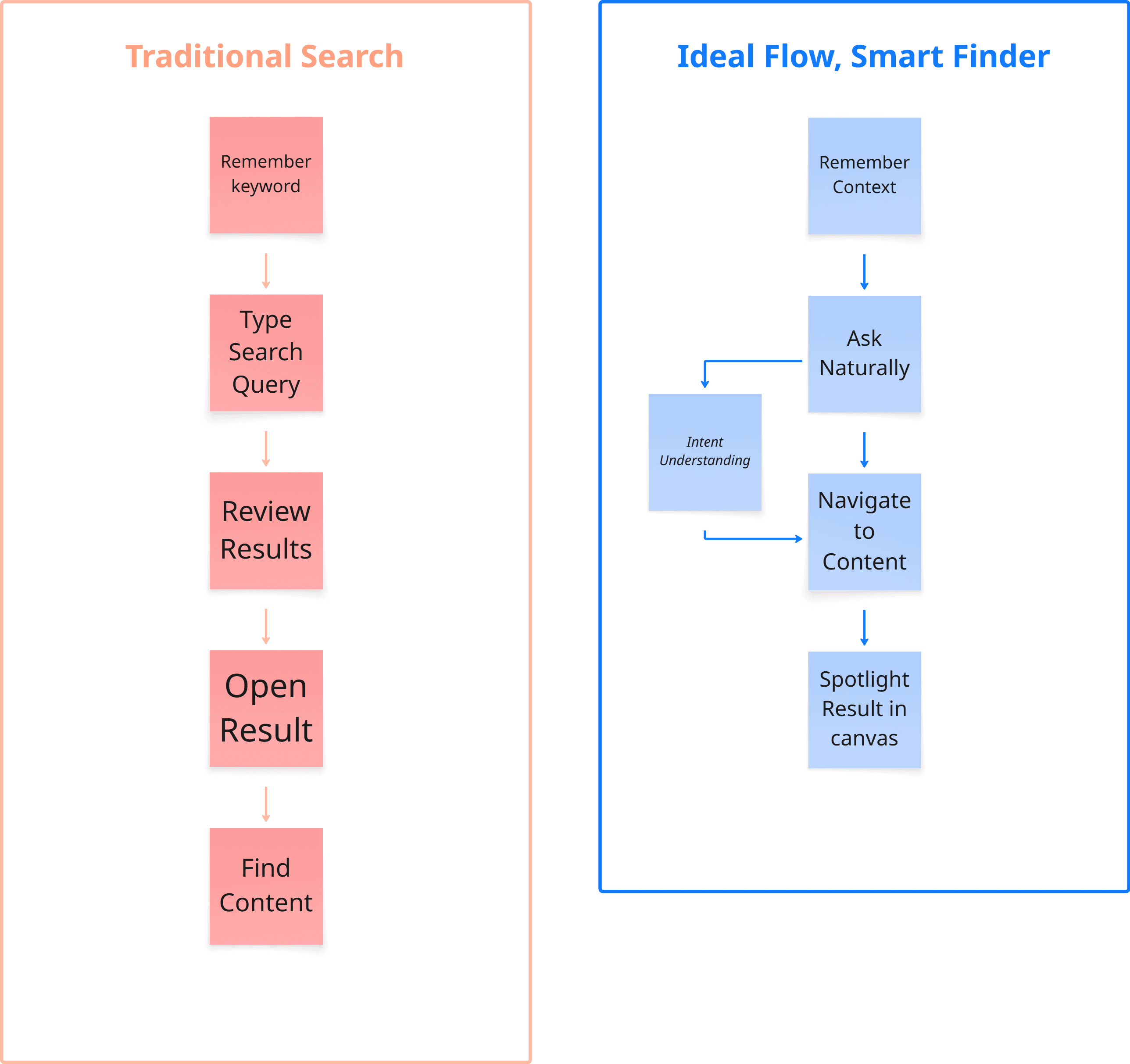
Users often remember Context
Users often remember a conversation, or where the information is located, rather than the exact words written in their notes.
Traditional search requires users to know what they're searching for and often relies on exact keywords or close matches.
2
Search Should be Conversational
People naturally think in complete thoughts and questions.
Users have to often translate their thoughts into keywords.
3
Users Want Answers, Not Results
Users are trying to find information, not browse search results.
Users have to Scan results in a list, detached from context, open a result, navigate within the note and then locate the relevant content
Design Principles
Preserve spatial memory and context
Support intent-based search
Allow users to search the way they naturally think.
Bring users directly to the information they need.
Ideal User Flow
What is Smart Finder?
Smart Finder shifts search from a keyword-and-results model to an intent-and-navigation model, helping users find information the way they naturally remember it
Natural language search that understands contextual queries such as "Where are my notes from Alice's interview?"
Voice-powered search that enables conversational queries instead of keyword construction.
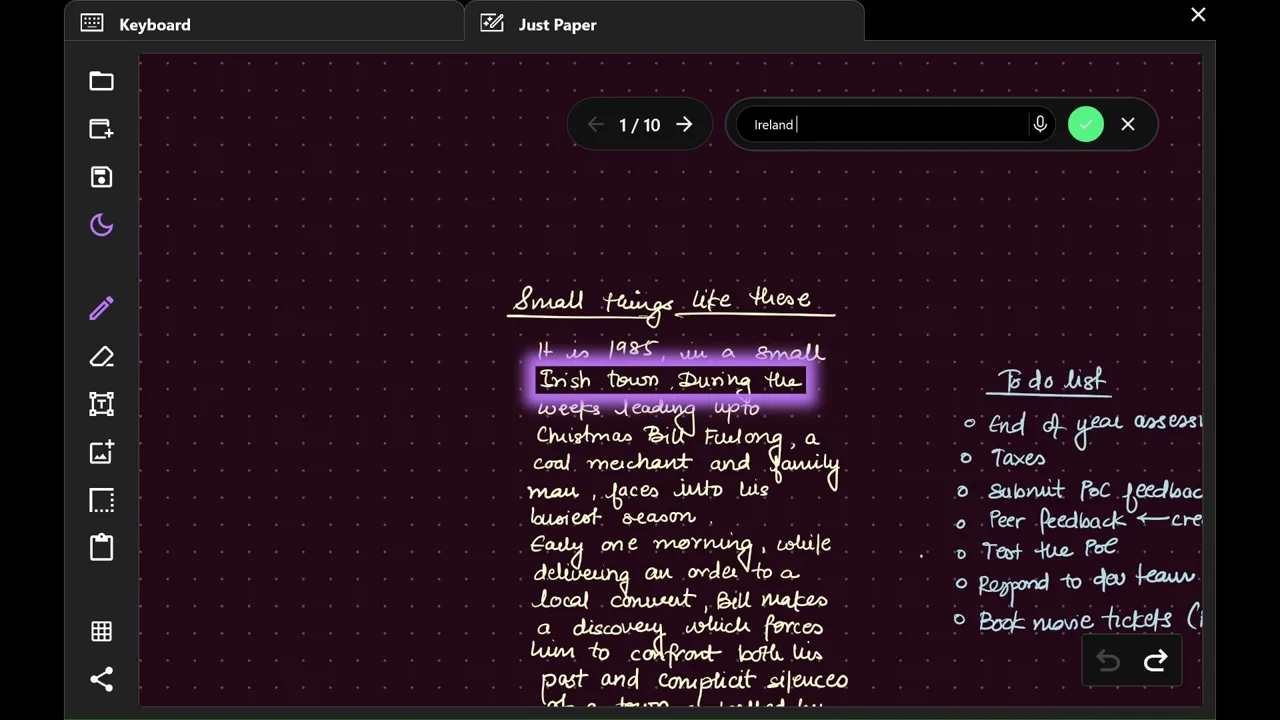
Navigate directly to the relevant area and the result is highlighted within the canvas, in context.
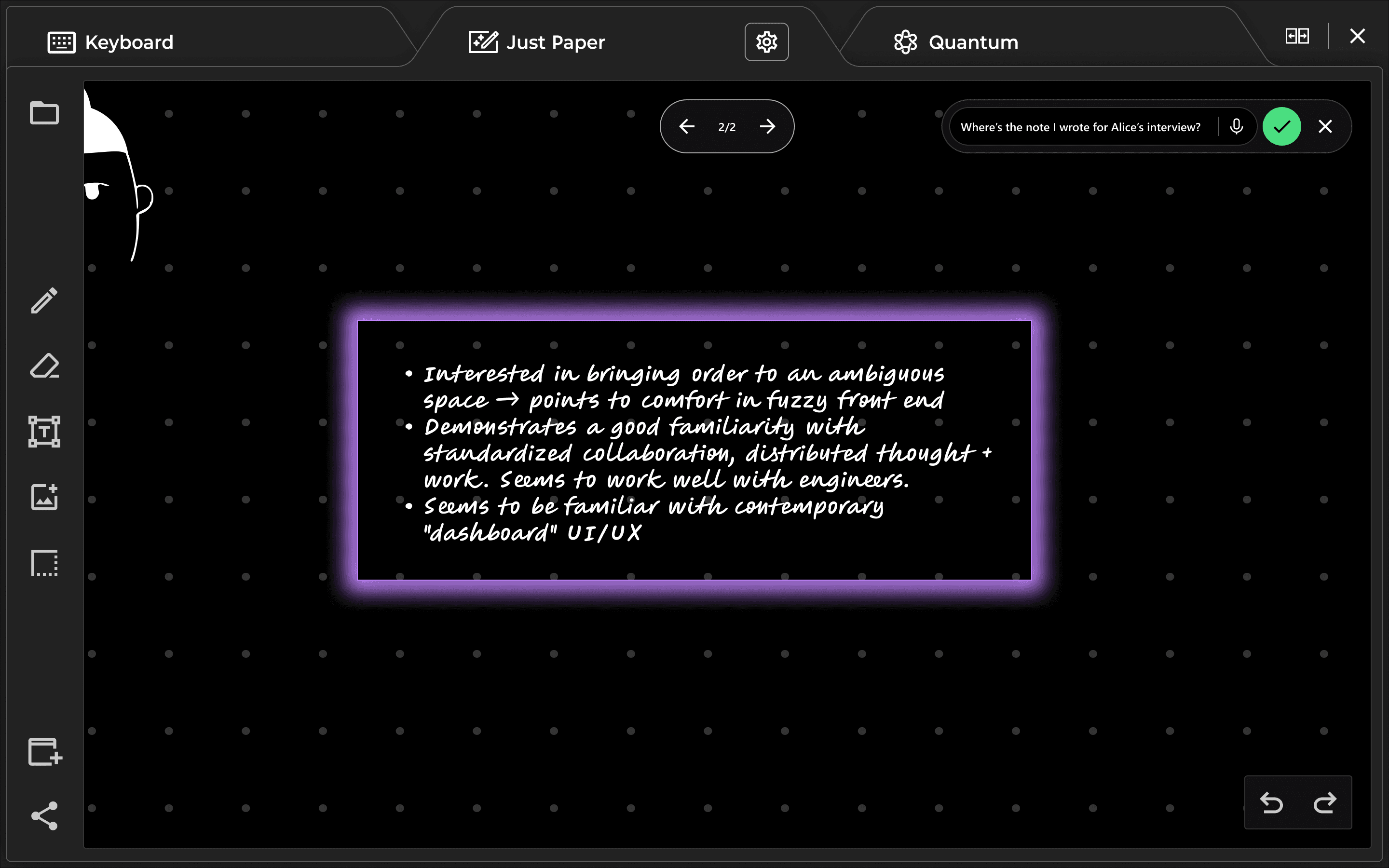
Highlight results
Carousel navigation
Natural language + voice
Example User Flow for Smart Finder, in a file

UI States for Search bar

Design Flow: Smart Finder
Within in a File
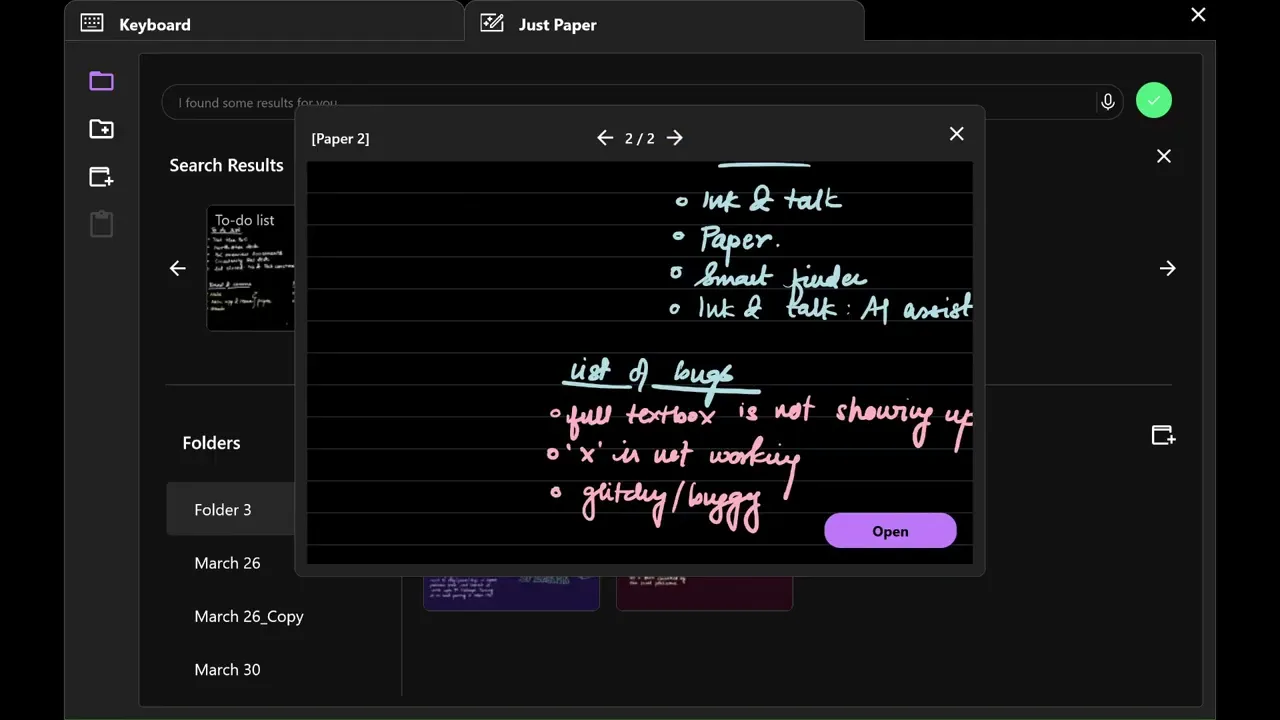
Across Folders
Prototype Video Demo: Smart Finder
Search
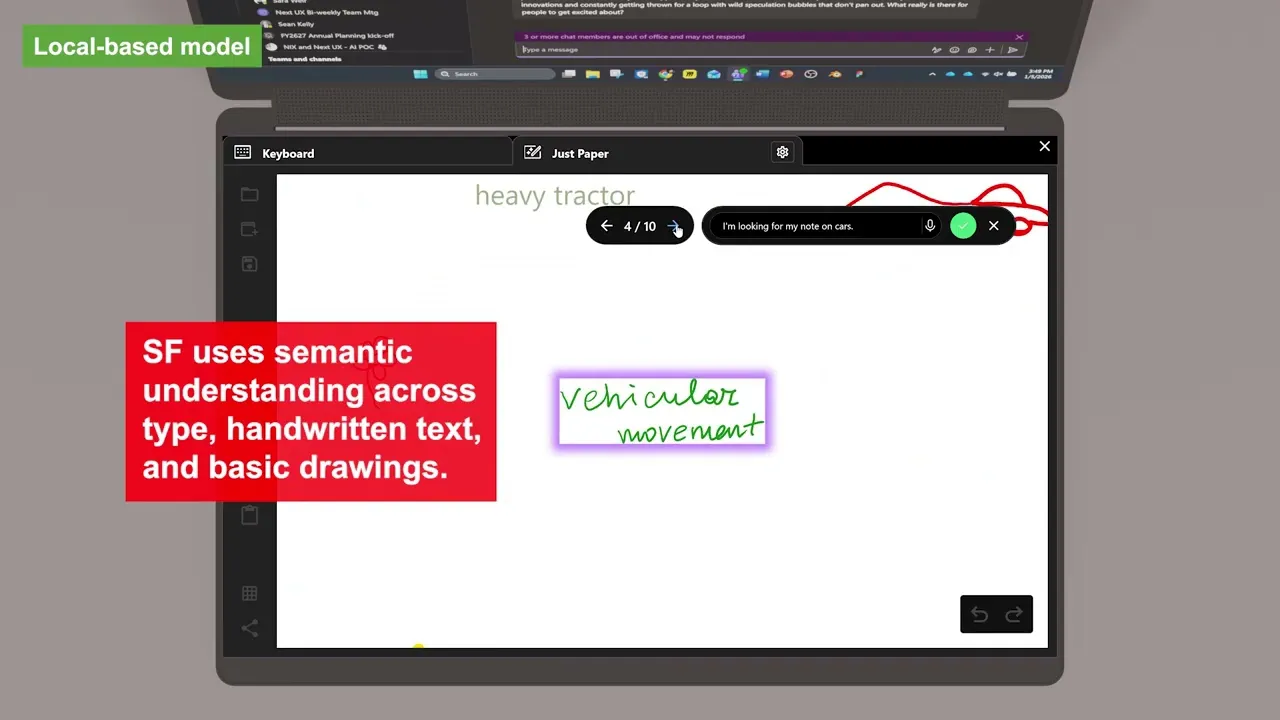
Typed and handwritten notes, simple drawings
Enables the ability to use natural language querying both within individual files and across multiple files
It also parses the content for semantic understanding, effectively allowing the user to locate different types of content that don’t directly match the wording of their initial query.
Explored cloud vs. local AI processing models